

Key takeaways
- Kashoo is online accounting built for small businesses, with bank transactions imported automatically from thousands of banks and credit unions.
- Expenses in Kashoo are coded to an expense category and, where you use them, a project.
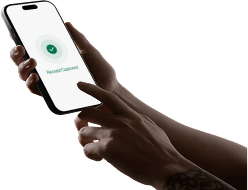
- The Kashoo mobile app lets the person holding the phone photograph a receipt and create an expense.
- Once more than one person spends on company cards, Vergo proposes the category, texts each cardholder for the receipt and records the transaction in Kashoo.
Where should you go next?
- Vergo's Kashoo integration
- What expense management software integrates with Kashoo?
- Get started with Vergo
How do you automate expense management in Kashoo, step by step?
- Connect Kashoo. Vergo connects directly through Kashoo's public API, reads your accounts and records each coded card transaction in Kashoo. There is nothing for your team to install.
- Connect your existing cards. Connecting your existing cards involves no card applications, no re-issuing and no banking change.
- Ask for receipts by text. Employees handle everything by text message — no app to download, no portal login — and Vergo chases missing receipts itself instead of waiting for a report.
- Propose the category and project. Vergo suggests the Kashoo category, and the project where one applies, for every receipt line.
- Record in Kashoo. Confirmed spend is written to Kashoo as a transaction record, so the bank feed line has something to match.
What does Kashoo need on each card purchase?
- Category: the expense account it belongs to, such as supplies, fuel or software.
- Project: if you track projects, the one the purchase belongs to.
- Receipt: Kashoo allows unlimited attachments, so the receipt can live with the record.
Where does Kashoo stop and automation start?
Kashoo does the owner-operator job well: the feed brings transactions in and the app captures a receipt when you remember to take a photo. It is built around one person keeping their own books. When three or four employees carry cards, the gap is everyone else's receipts and the question of which category a purchase belongs to. Vergo reads the receipt itself, line by line, and predicts the coding from what was actually bought, not just the vendor name on the header.
A practical example
A small landscaping business on Kashoo gives cards to two crew leads. One buys fuel and a replacement trimmer head at the same stop. Vergo texts the crew lead for the receipt, proposes vehicle fuel for one line and small equipment for the other, and tags the trimmer head to the client project it was bought for. The owner confirms both in under a minute, and Kashoo shows the purchase coded with the receipt attached.
How Vergo handles this
Vergo proposes the coding by inference from your own accounting structure and history — no rule library to build, no keyword lists to maintain, and new vendors are coded on first sight. For a Kashoo business that history is often short, so Vergo also reads the receipt contents rather than waiting for months of examples. Card spend, employee reimbursements and AP invoices run through one coding model — same coding, same review, one reconciliation — and payment stays on the rails you already use.
Frequently Asked Questions
Does Vergo replace the Kashoo mobile app?
No. Owners can keep using the app for their own receipts; Vergo collects receipts from other cardholders by text.
Can Vergo code to Kashoo projects?
Yes, where you use projects. Vergo proposes the project with the category, based on how similar purchases were coded.
How does Vergo write to Kashoo?
Through Kashoo's public API, as transaction records coded to your accounts. It is self-serve.
Do we need new cards?
No. Connecting your existing cards involves no card applications, no re-issuing and no banking change.
