

Key takeaways
- Sage Business Cloud Accounting is Sage's cloud accounting for small businesses, now marketed as Sage Accounting with Start, Standard and Plus plans.
- It connects banks and credit cards, imports transactions and categorises and reconciles payments automatically.
- Receipt photo capture comes with the Standard plan and above, alongside Sage Copilot.
- Vergo proposes the ledger account from each receipt, texts cardholders and records other payments with receipts through Sage's API.
Where should you go next?
- Vergo's Sage Business Cloud Accounting integration
- What expense management software integrates with Sage Business Cloud Accounting?
- Get started with Vergo
How do you automate expense management in Sage Business Cloud Accounting, step by step?
- Connect Sage. Vergo connects through Sage's public accounting API, reads your ledger accounts, and records each coded card purchase as a ledger-coded other payment with the receipt attached, or as a purchase invoice for supplier bills.
- Connect your existing cards. Connecting your existing cards involves no card applications, no re-issuing and no banking change.
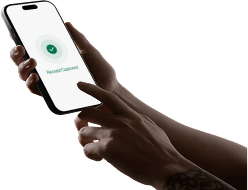
- Collect receipts by text. Employees handle everything by text message — no app to download, no portal login — and Vergo chases missing receipts itself instead of waiting for a report.
- Code each line. Each receipt line gets a proposed ledger account and tax treatment.
- Record in Sage. Confirmed purchases become other payments on the card account, so the bank feed line has a match waiting.
What does Sage need on each card purchase?
- Bank or card account the payment came from.
- Ledger account for the expense.
- Tax rate, such as VAT or GST/HST.
- Attachment: the receipt.
Where does the bank feed stop and automation start?
Sage categorises imported transactions and suggests matches, which suits recurring payees. A card line from a hardware store or an airline still needs the right ledger account, and the receipt is wherever the cardholder left it. Vergo reads the receipt itself, line by line, and predicts the GL account from what was actually bought, not just the vendor name on the header.
A practical example
A small design studio on Sage Accounting has three company cards. A designer buys a drawing tablet and printer ink on one receipt. Vergo texts for it, suggests computer equipment for the tablet and office supplies for the ink, each with its tax rate. The owner confirms, and one other payment with two lines and the receipt is recorded in Sage.
How Vergo handles this
Vergo proposes the coding by inference from your own accounting structure and history — no rule library to build, no keyword lists to maintain, and new vendors are coded on first sight. In a small Sage company, that history is often a few hundred past payments, which is enough to learn how you code your regular suppliers. Approval workflows are optional and fit how you already control spend: route by GL account or by amount — or skip approval flows entirely and let policy flags catch only what breaks a rule.
Frequently Asked Questions
Is Sage Business Cloud Accounting the same as Sage Accounting?
Sage now markets the product as Sage Accounting; Vergo connects to it through Sage's public API.
Does Vergo record entries in Sage itself?
Yes, as ledger-coded other payments or purchase invoices, with attachments.
Do we need the Standard plan for receipts?
Not for Vergo. Receipts collected by Vergo are attached to the payment it records.
Does Vergo handle VAT or GST?
Vergo suggests the tax rate with each ledger account, for you to confirm.
Do we need new cards?
No. Connecting your existing cards involves no card applications, no re-issuing and no banking change.
